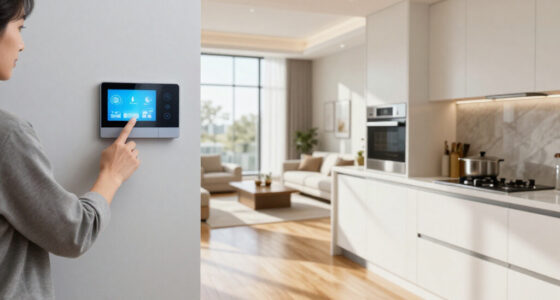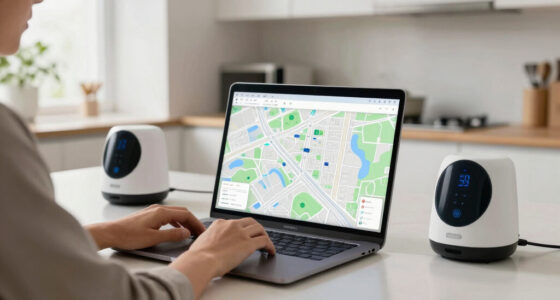
This guide walks through installing a smart home security system, including choosing devices, setup, and configuration. It is suitable for beginners with basic technical skills. Completing this task will give you a connected, easy-to-manage security setup that can be monitored remotely for peace of mind.

Get home appliances delivered free with Prime
- Fast, free delivery on millions of items
- Prime Video, Amazon Music and more included
- Member-only deals all year
Difficulty: Beginner | Time: 2-4 hours
What You’ll Need
Tools & Materials:
- Screwdriver
- Drill (optional)
- Smartphone or tablet
- Wi-Fi router
Knowledge:
- Basic understanding of home wiring (if hardwiring devices)
- Familiarity with smartphone apps
Check compatibility of devices with your Wi-Fi network and smartphone OS before purchasing. Fully charge or prepare your mobile device for app installation.
smart home security system with cameras
As an affiliate, we earn on qualifying purchases.
As an affiliate, we earn on qualifying purchases.
Before You Start
Ensure your Wi-Fi network is stable and has sufficient bandwidth. Clear space around installation areas. Read the device manuals for specific instructions and safety warnings.
As an affiliate, we earn on qualifying purchases.
Step-by-Step Instructions
Step 1: Choose and purchase a compatible smart security system
Select a system that fits your home size and security needs. Consider features like cameras, motion sensors, door/window sensors, and smart locks. Verify compatibility with your smartphone and Wi-Fi network.
Tip: Opt for a system with a cloud subscription option for remote access and storage.
Check: You have a system that includes core components (camera, sensors, hub) and is compatible with your devices.
Step 2: Unbox and review your security system components
Open all packaging, verify that all parts are present (cameras, sensors, hub, power supplies). Read the included instructions for each device.
Tip: Take photos of all components and their serial numbers for future reference.
Check: All components are accounted for and understood from their manuals.
Step 3: Install sensors and cameras at strategic locations
Mount door/window sensors on entry points, cameras at main entrances, and motion detectors in high-traffic areas. Use appropriate screws and mounting hardware, ensuring sensors are aligned correctly and cameras have clear views.
Tip: Avoid placing sensors near metal objects or sources of interference. Test camera views before final mounting.
Check: Sensors and cameras are securely mounted, properly aligned, and ready for connection.
Step 4: Connect devices to the central hub or Wi-Fi network
Power on each device, then follow the manufacturer’s instructions to connect them to the hub or Wi-Fi. Use the provided app to detect and add each device.
Tip: Ensure your smartphone is connected to the same Wi-Fi network during setup.
Check: All devices appear online and connected in the security system app.
Step 5: Configure the system via the mobile app
Use the app to name each device (e.g., front door sensor) and set up zones or areas. Enable notifications and set security modes (armed/disarmed).
Tip: Test each device after configuration to confirm alerts and status updates.
Check: Devices are labeled correctly, and notifications are functioning as intended.
Step 6: Set up remote access and automation rules
Configure remote access in the app, allowing control from anywhere. Set automation rules such as activating alarms when sensors detect movement or arming the system at night.
Tip: Use scheduling features to automate arming/disarming based on time or location triggers.
Check: You can control and monitor your system remotely, with automation functioning correctly.
As an affiliate, we earn on qualifying purchases.
Common Mistakes to Avoid
- Mounting sensors in locations prone to false alarms (e.g., near vents or moving objects). — Choose stable, motionless spots away from potential obstructions or environmental interference.
- Ignoring Wi-Fi signal issues, leading to unresponsive devices. — Ensure strong Wi-Fi coverage in installation areas; consider using Wi-Fi extenders if needed.
- Failing to test the system after setup. — Test all devices and automation rules thoroughly before declaring the system complete.
- Not updating device firmware or app software. — Check for updates immediately after installation and regularly thereafter.
As an affiliate, we earn on qualifying purchases.
Troubleshooting
Problem: Devices are not appearing in the app.
Solution: Ensure Wi-Fi connection is active, restart devices, and rescan for devices in the app.
Problem: Sensors are not detecting motion or opening.
Solution: Reposition sensors away from interference, confirm they are powered, and re-test after repositioning.
Problem: Cannot connect to remote access.
Solution: Verify internet connection, check that remote access is enabled in settings, and restart your router and devices.
What Success Looks Like
The system components are connected, operational, and can be monitored via the app. You receive alerts when sensors are triggered, and remote control functions correctly. All devices show online status, and automation rules work as configured.
Next Steps
Regularly test the system, update firmware/software, and review security logs. Consider adding additional sensors or cameras as needed. Keep a record of device serial numbers and manuals for future reference.
Frequently Asked Questions
Can I add more devices later?
Yes, most systems support expanding with additional sensors, cameras, or smart locks. Follow the manufacturer’s instructions for pairing new devices.
What if my Wi-Fi goes out?
Most systems can operate in a limited mode without internet, but remote access and cloud storage will be unavailable. Consider a backup power source or alternative connectivity options.
How secure is my smart home security system?
Choose systems with encryption and secure login options. Regularly update firmware and passwords to prevent unauthorized access.
Fall yard work Picks
leaf blowers
As an affiliate, we earn on qualifying purchases.